
Help
Your Dashboard
Search all 9 Help sections
What Is My Dashboard?
Your dashboard is the place where you can buy and send vouchers. Whether it's for your hardship fund, to incentivise tenant activities or for complaints, it's simple.
Setting Up Your Teams
Specify the different teams and an administrator for each to your Housing Perks account manager. E.g. Communities = person1@housing.com, People & Culture = person3@housing.com Each team will have their own balance, invoices and reporting.
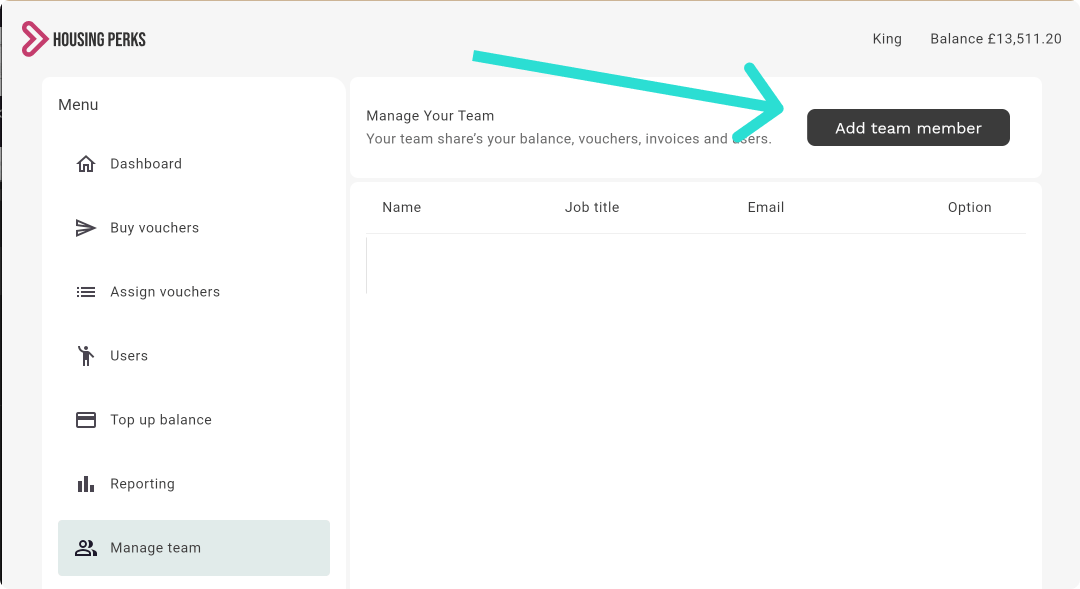
Adding Team Members
Once you've been set up as an administrator, you can add team members. Team members can buy vouchers using your balance so only add team members who you want to give access to spending.
Uploading Tenancy References
To give tenants access to the Housing Perks mobile app, you'll need to upload your tenancy references. Tenants enter their tenancy reference when they sign up.
- Go to References
Click on the References page in your Dashboard. You'll find it under "Users". - Click "Upload References"
Click the upload references button. - Upload CSV file of References
Prepare a .CSV file containing your complete, up-to-date list of all tenancy references. Each upload replaces the current list in the system, so any reference that is not included will be automatically deleted. - Preview and Confirm
You'll see a preview of the first 10 references that you've uploaded. If the data looks ok, click 'Upload tenancy references'. - Confirmation
Great! You're tenancy references have been uploaded. They can take up to 1 hour to process and give tenants access. Try refreshing after a few minutes.
Which References Should I Include?
Upload your complete, most up-to-date list of all tenancy references each time. The file should include every reference that needs to remain active in the system, including references submitted in previous uploads.
Each new upload replaces the existing list. Any tenancy reference that is not included in the latest file will be automatically deleted, so please check that the file is complete before uploading.
What format should the file be?
The file should be in a .CSV format. You can create this by putting the data into Excel and exporting to .CSV. Make sure there is only 1 column and the column has no header.
How can I delete references?
To delete all tenancy references, open the "Options" menu in the top-right corner of the page and select "Delete All References". This permanently removes every tenancy reference from the system. Only use this option when you intend to remove the entire list; you can upload a new, complete list afterwards.
To delete a single tenancy reference, find the reference in the list, open the three-dot actions menu on its row and select "Delete reference".
Topping Up, Buying Vouchers and Assigning Them
Start off by topping up your Housing Perks account by going to "Top up balance" and clicking "Top Up". Once you have balance in your account you can buy vouchers. Buy vouchers by clicking "Buy vouchers", selecting all the retailers you would like the vouchers to work at, entering the quantity and value and paying. Once you've purchased the vouchers you can assign them to any phone number on the "Assign vouchers" page. Alternatively, you can download and print vouchers by clicking "Download voucher".
Watch how it works below:
Reporting
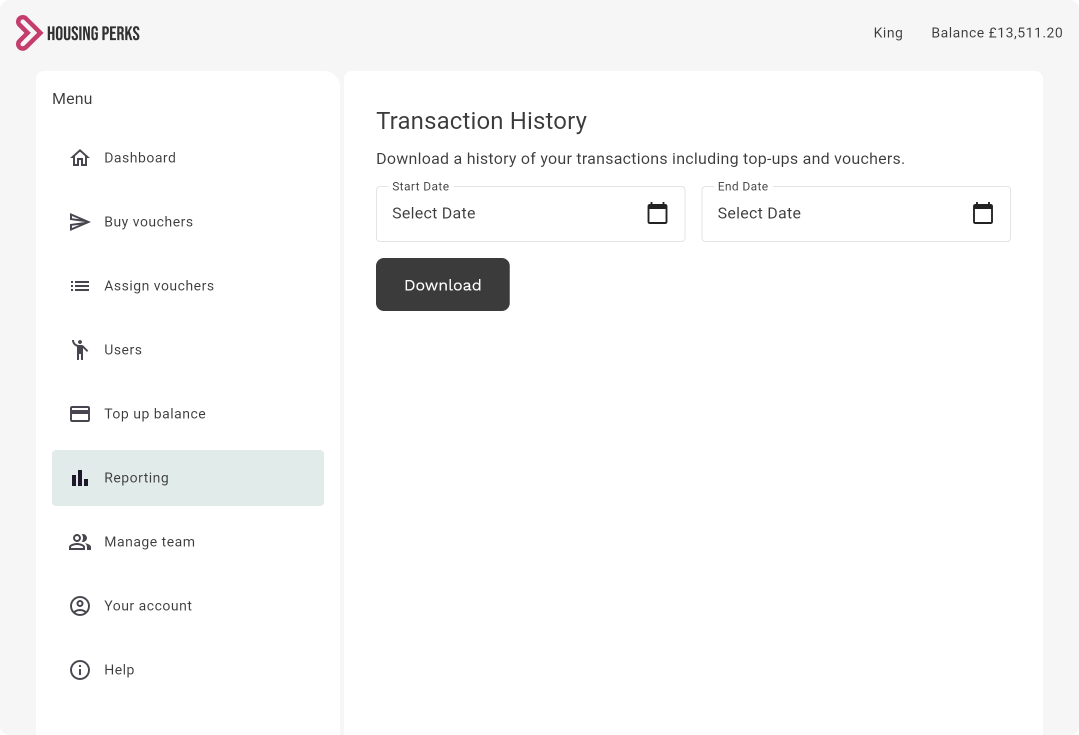
You can download a full transaction history of vouchers on the "Reporting" page. Select the start and end date of the transaction history that you want and click "Download". This will download a CSV file which can be opened in Excel.
You can download a full transaction history of vouchers on the "Reporting" page. Select the start and end date of the transaction history that you want and click "Download". This will download a CSV file which can be opened in Excel.
Voucher Limits
There is a limit on eGift cards of £500 per eGift card and a limit of £1,000 per payment card.
Users
To access a real-time list of sign-ups for the Housing Perks mobile app click on "Users" and you can full the full list of tenant and staff sign-ups. Since this list updates in real time, it is the most accurate source of sign-up data. If you notice any discrepancies between this list and your Engagement Report, always refer to the Sign-Ups section for the lastest information, as the Engagement Report is not updated in real time.
Rent Contributions
Any discount you receive on a voucher you can automatically contribute to a recipients rent account. Speak to your account manager about this if you'd like to make this available on your account. If you have this switched on for your account, it is essential to include the tenancy reference of the recipient you assign.